- Published on
- 2 min read
> How to scale text to fit its parent view with SwiftUI
As recently as the iOS 18 SDK, SwiftUI doesn't provide a direct way to scale a text view to fit its container. But thankfully, there are a couple of workarounds that allow us to accomplish this goal. I'll demonstrate each by displaying a simple text view inside a parent view with a fixed size.
The first solution is to use a GeometryReader to read the size of the parent view, and use its dimensions to set a system font size. This solution is imperfect, because you have to choose an arbitrary scale factor for your font in order to for it to not fill 100% of the height of the parent. You also have to apply a manual offset to the position of the text element if you want to control its alignment.
ZStack {
    LinearGradient(
        colors: [.purple, .cyan],
        startPoint: .top,
        endPoint: .bottom
    )

    GeometryReader { geometry in
        Text("👍")
            .font(
                .system(size: geometry.size.height * 0.8)
            )
            .position(
                x: geometry.frame(in: .local).midX,
                y: geometry.frame(in: .local).midY
            )
    }
}
.frame(
    width: 200,
    height: 200
)
Another solution, which is both my preferred solution and admittedly a bit of a hack is to make the system scale the font down to fit the parent. To accomplish this, we set a system font size that is much larger than is necessary to fit the parent view. We then set a relatively small minimumScaleFactor to allow the text to be scaled down to fit the parent.
ZStack {
    LinearGradient(
        colors: [.purple, .cyan],
        startPoint: .top,
        endPoint: .bottom
    )

    Text("👍")
        .font(.system(size: 100))
        .minimumScaleFactor(0.01)
}
.frame(
    width: 200,
    height: 200
)
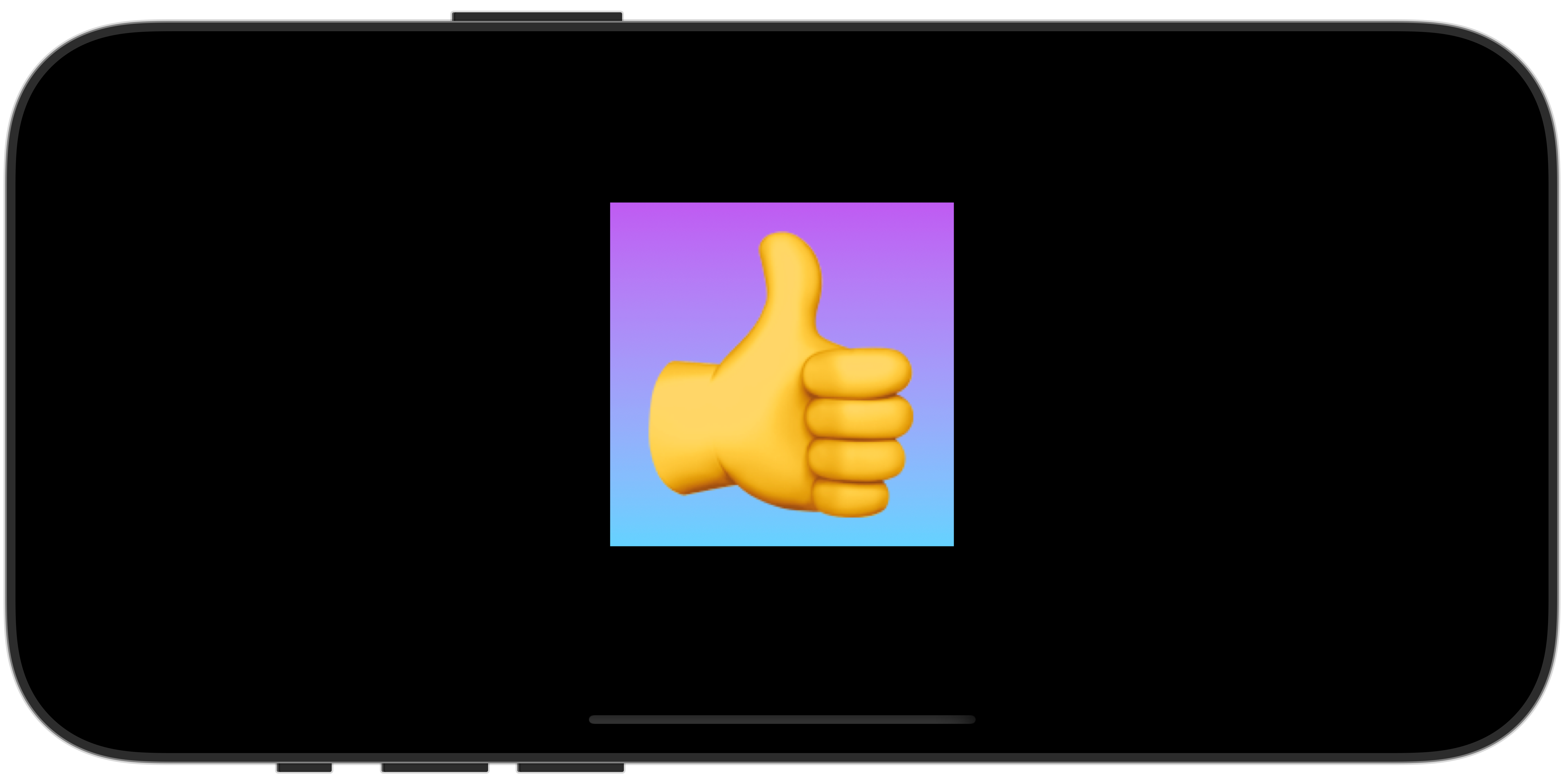
In either case, we're able to achieve our desired outcome, where the text view grows to fit its parent view.
// Continue_Learning
Aligning Text in SwiftUI
Learn how to align single and multiline text in SwiftUI.
How to Change the Background Color of a View in SwiftUI
Learn different ways to set background colors on SwiftUI views, from simple color fills to gradients and materials.
Rounding Corners in SwiftUI: From cornerRadius to clipShape
The cornerRadius modifier is deprecated in iOS 17. Here's how to use clipShape, RoundedRectangle, and the new ConcentricRectangle to round corners the modern way.
// Stay Updated
Get notified when I publish new tutorials on Swift, SwiftUI, and iOS development. No spam, unsubscribe anytime.