- Published on
- 1 min read
> How to force navigation bar to show background in SwiftUI?
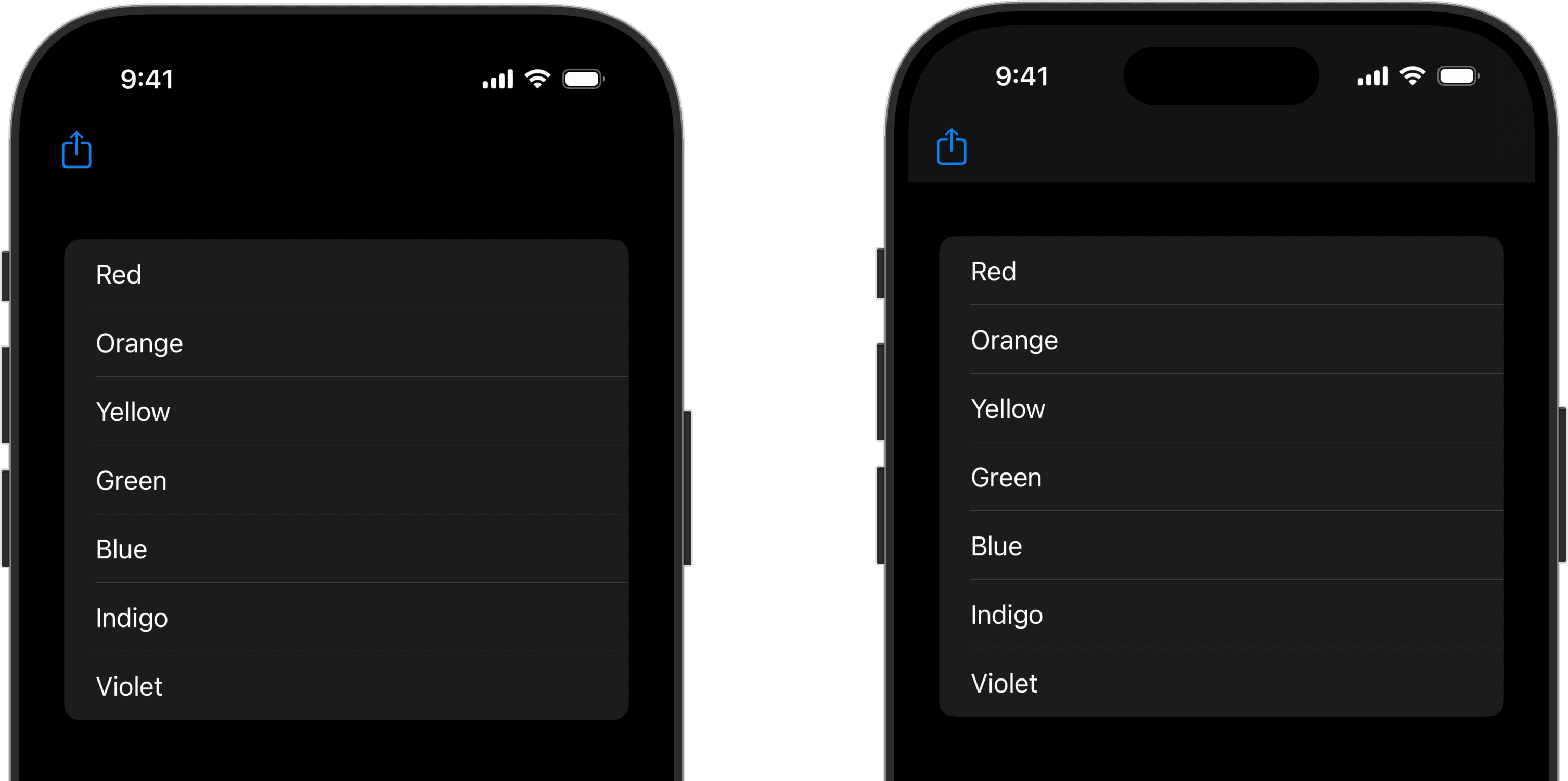
When using a NavigationStack, by default you'll only see the background of the navigation bar fade in if your content is wrapped in a ScrollView and you start scrolling. If you don't have a ScrollView this can lead to your navigation buttons appearing to float above your content, not in a navigation bar. If this is undesirable, use the toolbarBackground modifier and set the visibility parameter to .visible, instead of the default .automatic.
struct ContentView: View {
    var body: some View {
        NavigationStack {
            List {
                // ...
            }
            .toolbarBackground(.visible, for: .navigationBar)
            .toolbar {
                ToolbarItem(placement: .topBarLeading) {
                    ShareLink(
                        item: URL(string: "https://bleepingswift.com")!
                    )
                }
            }
        }
    }
}
Here's a before and after screenshot of how this looks.
// Continue_Learning
Presenting Multiple Sheets in SwiftUI
How to present a second sheet from within an already-presented sheet in SwiftUI.
Creating custom styles for DisclosureGroup views
Learn how to use DisclosureGroupStyle to create custom DisclosureGroup views in SwiftUI.
SwiftUI Form: Sections, FormStyle, and Validation
How Form differs from List, how to structure it with Sections, what .grouped and .columns actually change, and a validation pattern that does not fight the framework.
// Stay Updated
Get notified when I publish new tutorials on Swift, SwiftUI, and iOS development. No spam, unsubscribe anytime.