- Published on
- 2 min read
> Keep the Software Keyboard Visible in iOS Simulators
Over the years I've seen UI bugs make their way into forms on many occasions because developers often test using the iOS simulators. When testing using the simulator, it is second nature to start typing on your physical keyboard to enter text into a field. Doing so automatically dismisses the software keyboard. When this happens, it can be easy to ship code where some UI elements are hidden under the keyboard when it pops up.
The solution I've found is to place this snippet somewhere that will be run once early in your app's lifecycle. I usually use applicationDidFinishLaunching. Doing so will allow you to type with the physical keyboard without dismissing the software keyboard, thus making it easier to make sure your UI is behaving properly.
#if targetEnvironment(simulator)
let selector = NSSelectorFromString("setHardwareLayout:")

typealias SetHardwareLayoutImp = @convention(c) (
    UITextInputMode,
    Selector
) -> Void

for inputMode in UITextInputMode.activeInputModes {
    if inputMode.responds(to: selector) {
        guard let imp = inputMode.method(for: selector) else {
            continue
        }

        let function = unsafeBitCast(imp, to: SetHardwareLayoutImp.self)

        function(inputMode, selector)
    }
}
#endif
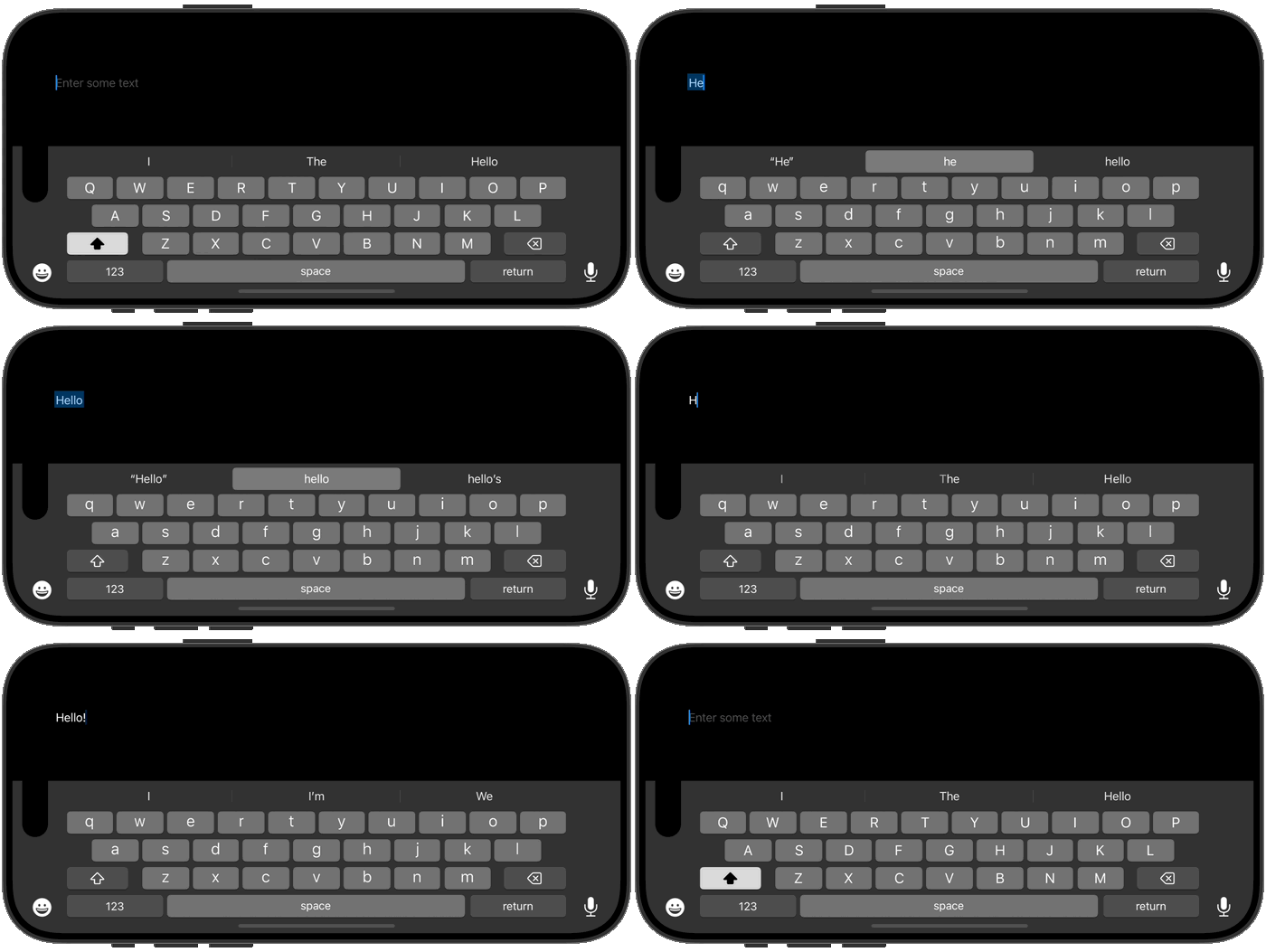
Entering some text with both the software and hardware keyboards.
// Continue_Learning
Xcode 27.1 Beta or Xcode 27.2 Beta: Which One Do You Need?
Apple is running two Xcode betas at once. Xcode 27.1 beta has the iPhone Duo SDK and simulator, while Xcode 27.2 beta has the 27.2 SDKs and new tooling. Here's what's in each, the known issues to watch for, and how to keep both installed.
StoreKit in Xcode 27: Commitment Plans, Offer Codes
Xcode 27 brings monthly subscriptions with a 12-month commitment, a reworked offer code redemption API, Bundles and Suites, and a unified App Review submission flow. Here is what each one changes for your code.
Getting Started with App Intents and Siri Shortcuts
Expose your app's features to Siri, Shortcuts, and Spotlight with App Intents, the Swift-native replacement for SiriKit in iOS 16 and later.
// Stay Updated
Get notified when I publish new tutorials on Swift, SwiftUI, and iOS development. No spam, unsubscribe anytime.