- Published on
- 2 min read
> How to Change the Default Screenshot Folder on macOS
macOS saves screenshots to your Desktop by default, which gets messy fast if you take a lot of them. There are two ways to change this: Terminal or the built-in Screenshot app.
Terminal Method
Create your destination folder and set it as the default:
mkdir -p ~/Pictures/Screenshots
defaults write com.apple.screencapture location ~/Pictures/Screenshots
killall SystemUIServer
That last command restarts the system service so the change takes effect immediately.
You can use any path you want. Some other options:
# Documents folder
defaults write com.apple.screencapture location ~/Documents/Screenshots

# iCloud Drive (if you want them synced)
defaults write com.apple.screencapture location ~/Library/Mobile\ Documents/com~apple~CloudDocs/Screenshots
To switch back to Desktop:
defaults write com.apple.screencapture location ~/Desktop
killall SystemUIServer
Using Command-Shift-5
If you'd rather not use Terminal, press Command-Shift-5 to open the Screenshot toolbar.
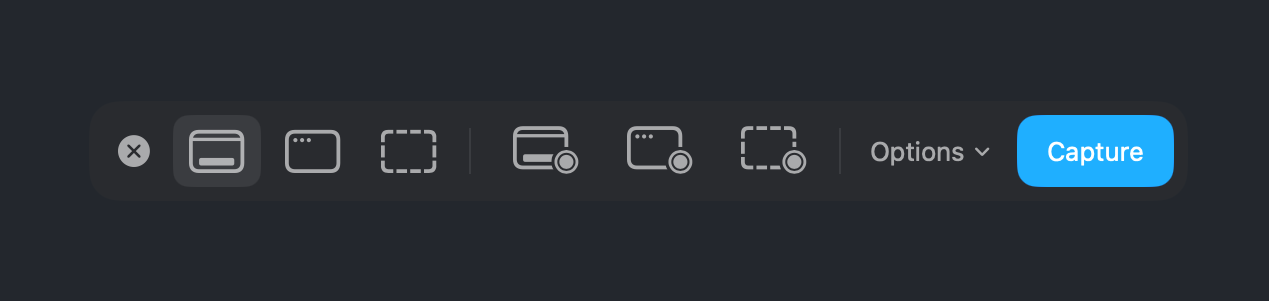
Click Options, then pick a location under "Save to" or choose Other Location... to select a custom folder.
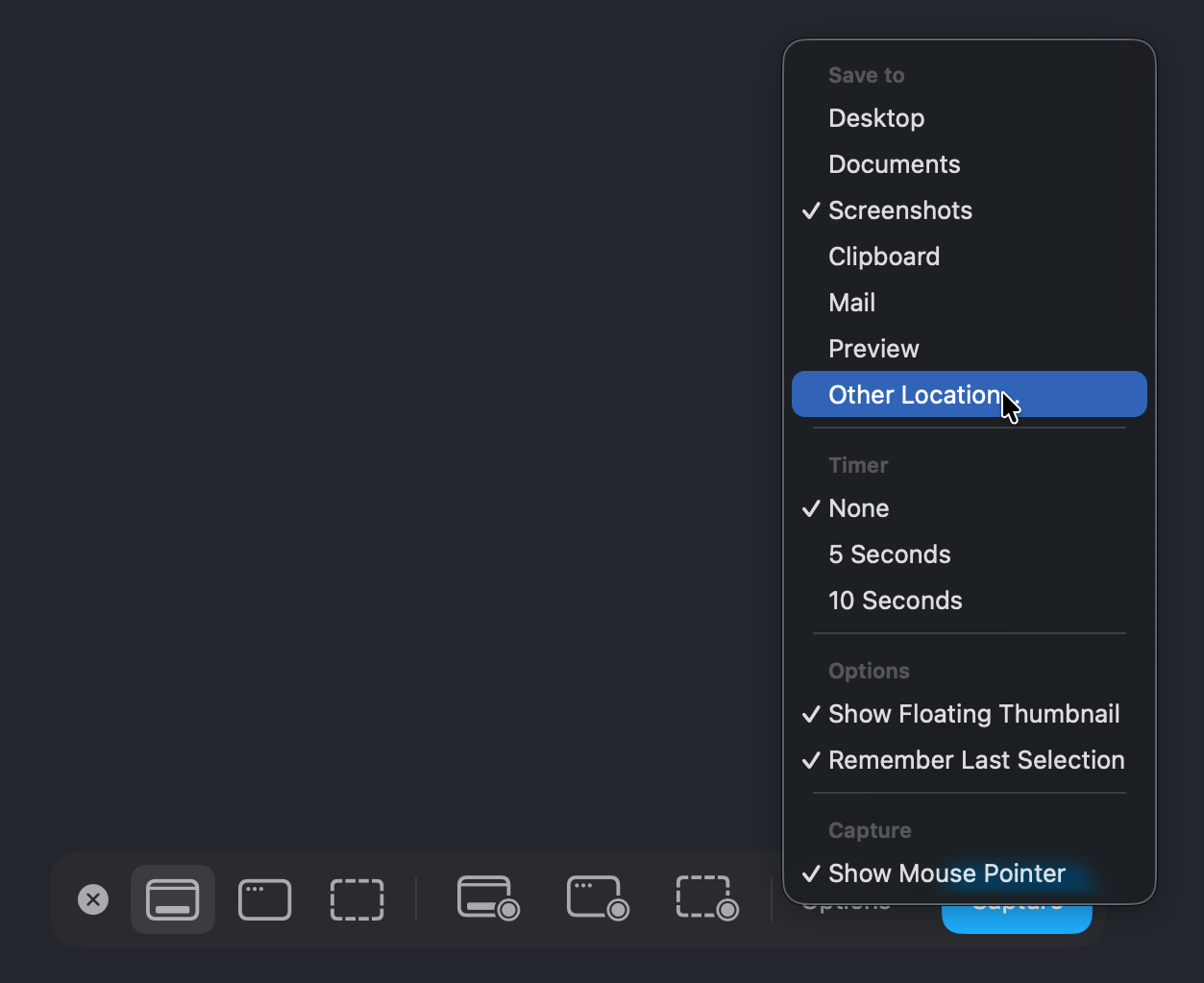
The change applies immediately.
Changing the File Format
While you're at it, you can also change the default format from PNG if you want smaller files:
defaults write com.apple.screencapture type jpg
killall SystemUIServer
Other options are png (default), pdf, and tiff.
// Continue_Learning
How to Free Up Xcode Disk Space and Reclaim 50GB+
Free up Xcode disk space fast: clear derived data, old simulators, and device support files. Follow these steps to reclaim 50GB or more today.
Prevent Your Mac from Sleeping While Claude Code Works
Set up Claude Code to automatically keep your Mac awake during long tasks and let it sleep again when finished, using hooks and the caffeinate command.
Testing Expo and React Native on Device Over Local Network with Bonjour
Skip Expo Go and test your development build directly on a physical device using Bonjour for automatic network discovery.
// Stay Updated
Get notified when I publish new tutorials on Swift, SwiftUI, and iOS development. No spam, unsubscribe anytime.